
Manage Product Members
In this section, you can manage your team by adding new members, updating their permissions, or removing them. To ensure security, all member-related actions require biometric confirmation using the Frak Wallet.
Team Management Overview
Your product team consists of multiple roles, each with different permissions. The roles available are:
- Owner: The initial owner of the product. Can perform all actions on the product.
- Administrator: Can do everything except updating the product's name and types.
- Campaign Manager: Responsible for managing advertising campaigns (create, pause, delete campaigns).
- Interaction Manager: Handles interactions contracts.
- Purchase Oracle Updater: An internal role that can be configured through the "Purchase Oracle" section. This role requires synchronization and pre-signed interactions for purchase-related operations.
Team Overview
Below is an example of how the Team Overview looks:
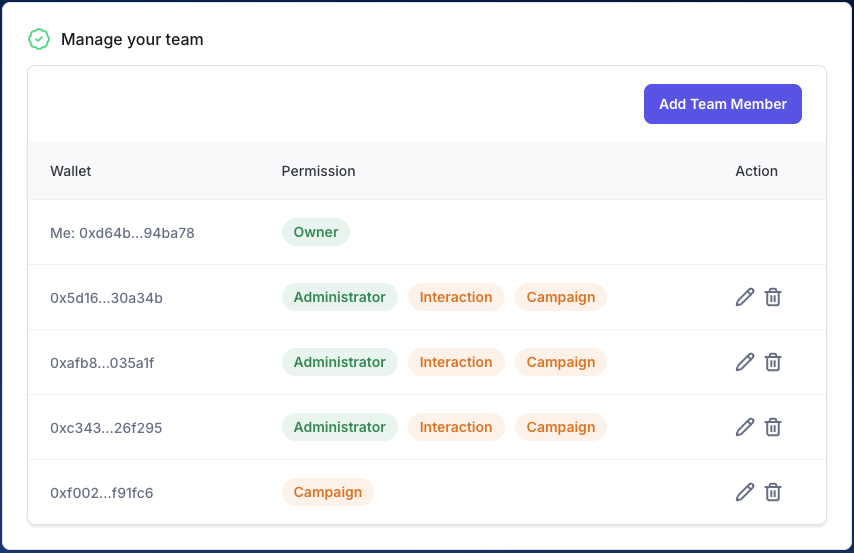
In this view, you can see:
- Wallet Address: The Frak Wallet address of each member.
- Permissions: The roles assigned to each member.
- Actions: The edit and delete icons to update permissions or remove a member.
Adding a New Member
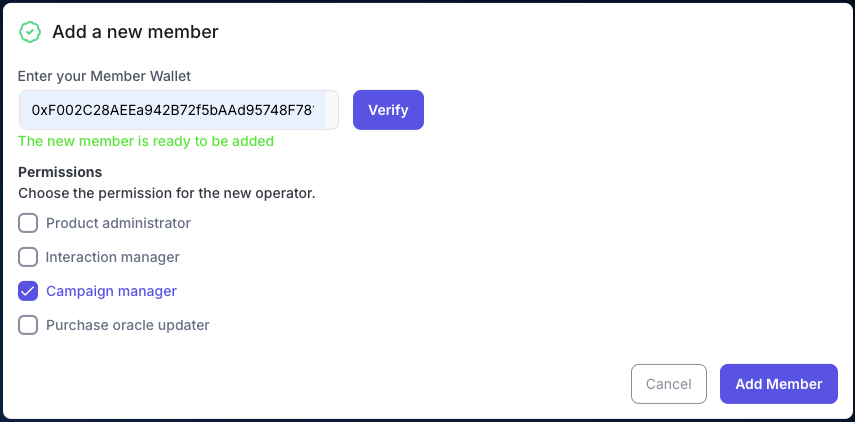
To add a new team member:
-
Enter the Member Wallet: This must be a valid Frak Wallet address, which can be found on the Frak Wallet settings page.
-
Verify the Wallet: After entering the wallet address, click Verify to ensure it’s valid.
-
Choose Permissions: Assign the appropriate permissions to the new member by selecting one or more roles.
-
Confirm Addition: Once all details are correct, confirm the action using your biometric authentication.
Here’s what the member addition form looks like:
Updating Member Permissions
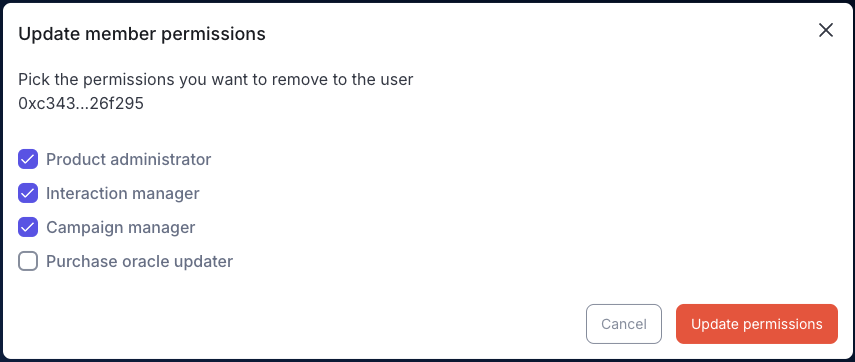
If you need to change a member's permissions, click the edit icon next to the member's entry in the team list. You can then adjust their roles and permissions by selecting or deselecting options. Again, biometric authentication is required to confirm changes.
Example of updating a member's permissions:
Removing a Member
To remove a team member, click the trash icon next to their entry in the team list. After confirming the removal and authenticating with your biometrics, the member will be removed from the team.