
How to List a Product
This guide walks you through the steps required to list a product in Frak Ads Manager. Follow the instructions below to register your website (product) and start your ad campaigns.
Step 1: Start Listing a Product
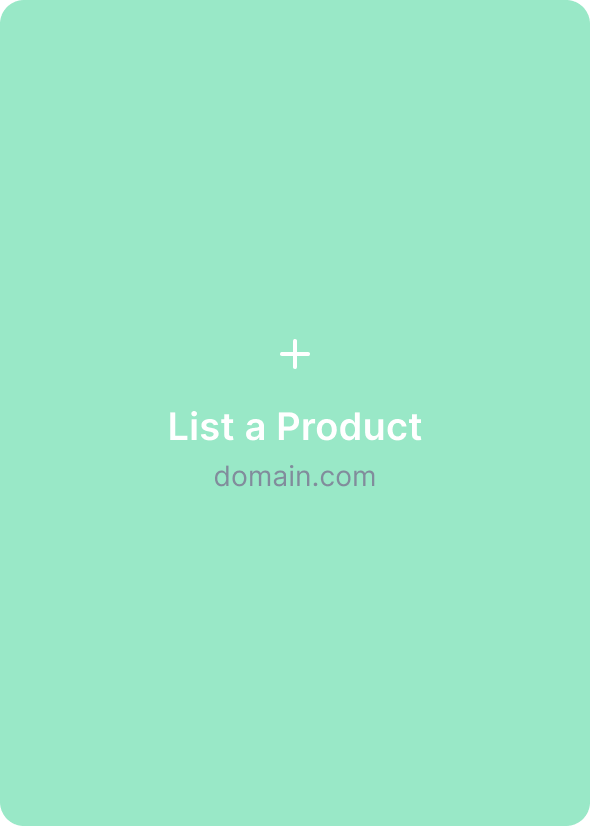
From the Frak Ads Manager dashboard, click on "List a Product".
Step 2: Enter Product Information
- Enter a Product Name: This is the name of the product you want to list (e.g., the name of your website or brand).
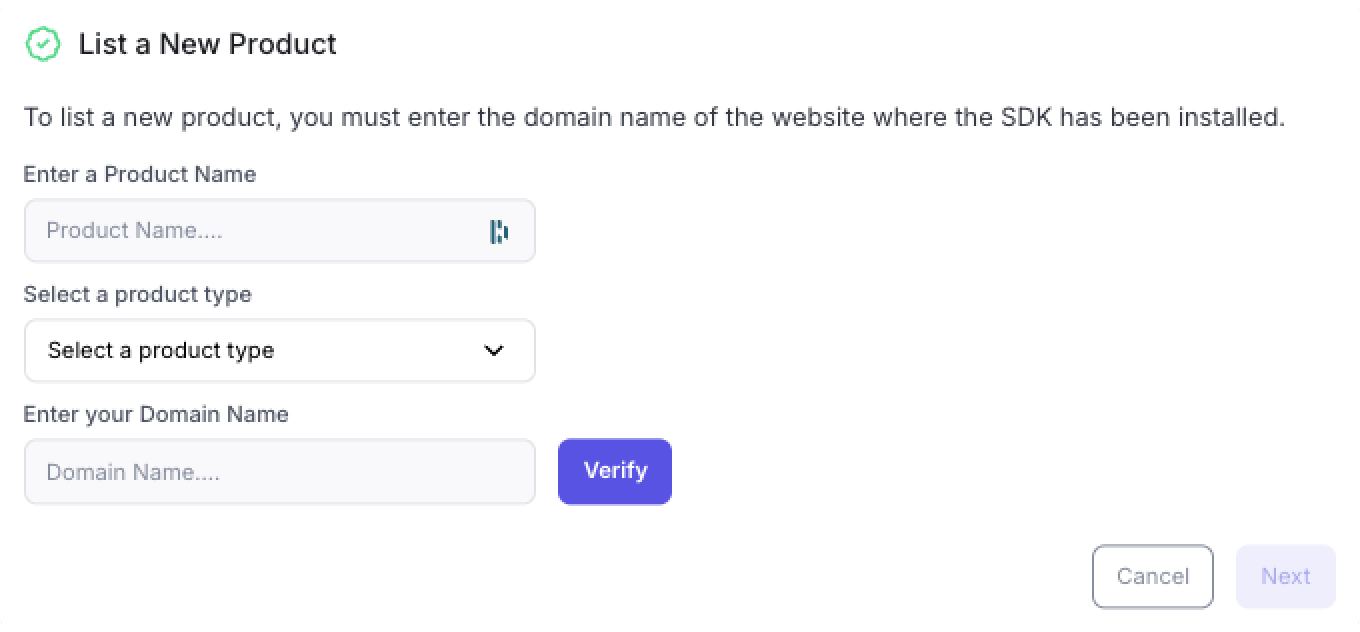
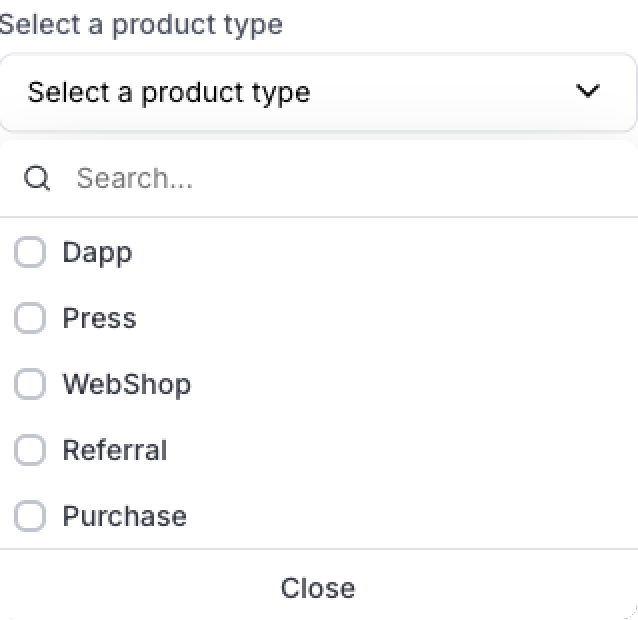
- Select a Product Type: Choose the type of product you want to list from the available options.
- Dapp
- Press
- WebShop
- Referral
- Purchase
Step 3: Verify Your Domain
- Enter your Domain Name (e.g., example.com).
- Before clicking Verify, make sure to follow the instructions in the page How to verify your domain for Frak Ad Manager?. This page will guide you through the process of adding the correct TXT record for domain validation.
Note: If the Frak setup tool can't find your new TXT record, wait an hour before you try again.
- Once your TXT record is set up and validated, come back to this page and click Verify.
Step 4: Confirm and Validate
After successfully verifying your domain, review the product details.
- Verify all the information you have entered.
- Click on Next to proceed.
Step 5: Validate with Biometrics
To finalize the product listing, you'll need to validate it using your biometric authentication (e.g., fingerprint or facial recognition). This step ensures that the product is securely linked to your account.
Once validated, your product will be listed, and you're ready to start creating your ad campaigns in Frak Ads Manager!